How to Retrieve or Export a Contact List From Your Old Mail System
You can export your Contacts to a comma-separated (.csv) file.
Step 1. Go to
Step 2. Log in with your username and password
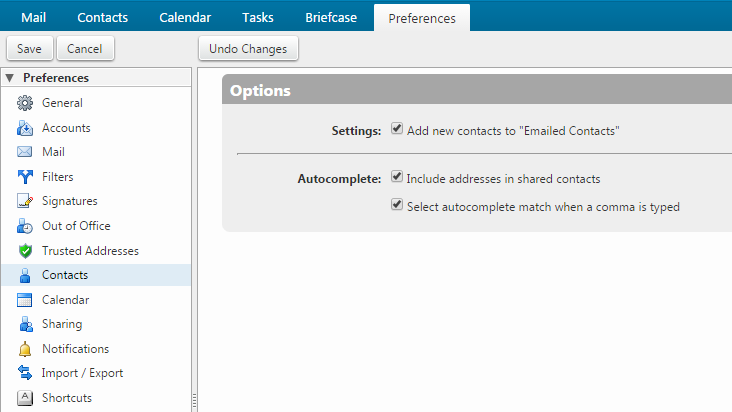
Step 3. Go to Preference > Import/Export page
Step 4. In the Export > Type section, select Account Contacts. You can export your contacts in the standard "Comma-Separated Values" (.csv) format, then import them into another contact manager program.
Step 5. Select the Source folder of the contacts to export.
Step 6. Click OK

How to Import a Contact List
You can import contact lists that are saved in a comma-separated (.csv) file. After the contacts are imported, they are alphabetized by last name.
Step 1. Go to Preference > Import/Export page
Step 2. In the Import > File text box, browse and locate the .csv file to import
Step 3. Select the type of contact list you are importing. You can select to auto-detect the contact list, or select from the contact lists in the drop-down menu.
Step 4. Select the Destination to import the contacts or create a list
Step 5. If creating a new list, click New and enter a name, color and location for the new folder
Step 6. Click OK
Step 7. Click Import. Depending on the size of the .csv file, the import might take a few minutes. When the import is complete, the Status Box shows the number of contacts successfully imported.