Updating Email Passwords in your iOS 26 Device
This easy guide will help you update your email password and/or settings on your iOS device.
Step 1. Locate your email settings:
|
Go to Settings and scroll down to Apps .png) .png) Use the search function and type Mail .png) .png) Step 3: Select your email account from the list.
.png) |
Step 4. Update your INCOMING MAIL SERVER password:
- If you are updating your password, in the Password field enter: Your NEW email password.
- If you are updating/verifying server settings- verify they are as follows
- Incoming Mail Server Host Name- mail.bevcomm.net
- Username is your FULL email address
- Password is your email password
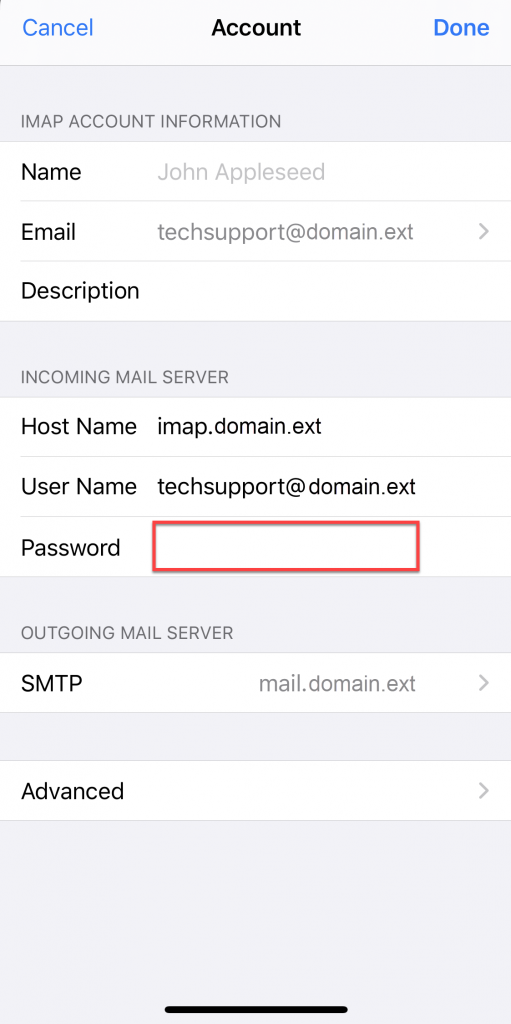
Step 5. Update your OUTGOING MAIL SERVER settings/password:
- Tap SMTP
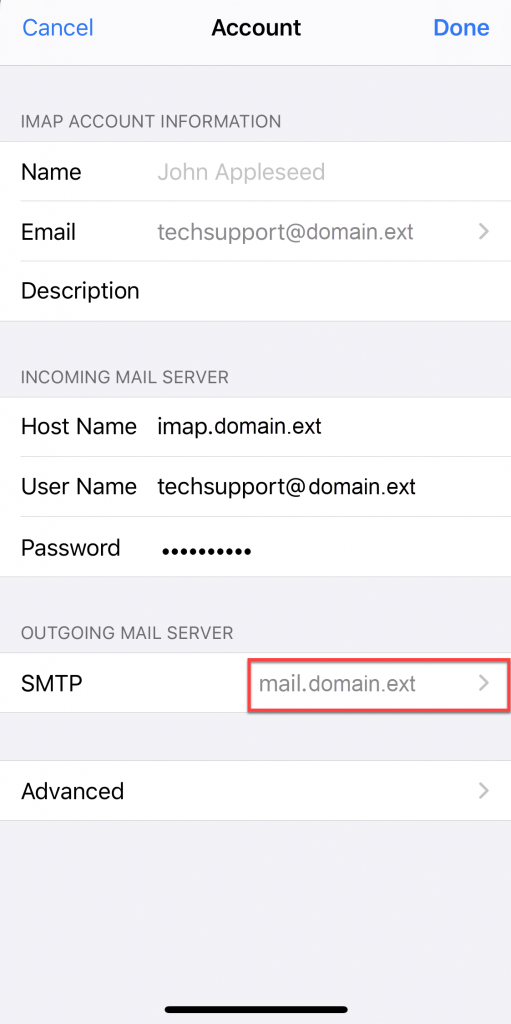
- Tap the account listed under Primary Server
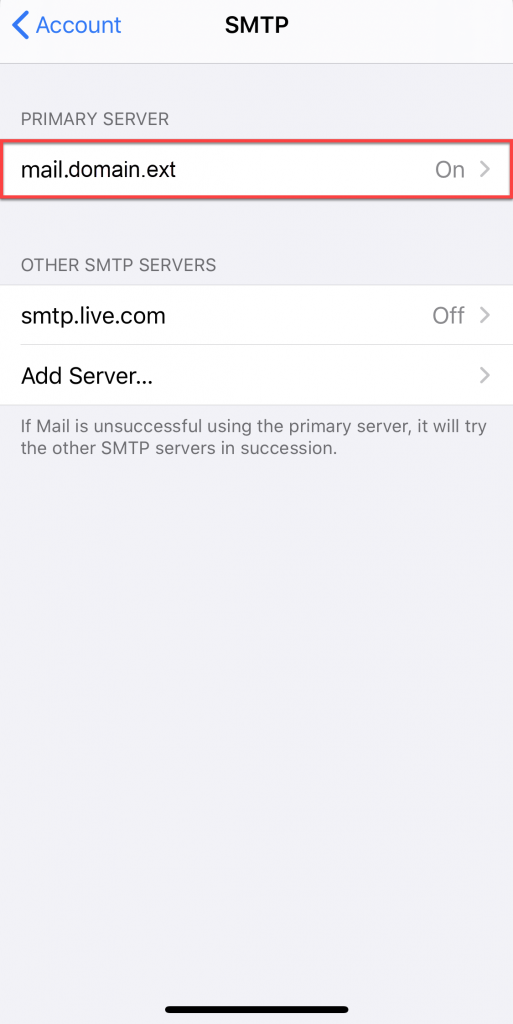
-
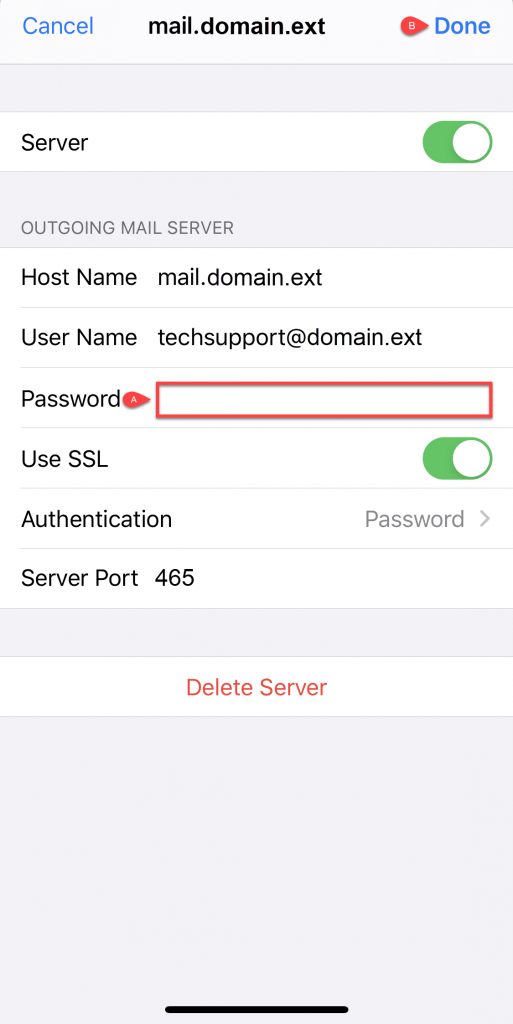
If you are updating your password, in the Password field enter: Your NEW email password.
- If you are updating/verifying server settings- verify they are as follows
- Incoming Mail Server Host Name- smtp.bevcomm.net
- Username is your FULL email address
- Password is your email password
- Make sure SSL is enabled
- Server Port should be 465
-
Tap Done
Congratulations, your email password is updated!